Automate Calendar Scheduling with AI (Step-by-Step)
I used to spend 45 minutes a day just coordinating meetings. Then I set up AI calendar automation and got that time back. Here's exactly how I did it.
Last month, I counted the emails I sent just to schedule meetings. Forty-seven. In one week. That's when I finally snapped and decided to let AI handle my calendar — and honestly, I wish I'd done it two years ago.
- What You Need Before You Start
- Step-by-Step: Setting Up Your AI Calendar Automation
- The Results: What This Actually Saves You
- FAQ
- Conclusion
What You Need Before You Start
Before we dive into the steps, let's make sure you've got everything lined up. Nothing worse than getting halfway through a setup and realizing you're missing a piece.
**Here's your checklist:**
1. **A calendar app** — Google Calendar or Outlook. Either works perfectly. 2. **A scheduling tool** — I use Calendly, but Cal.com or SavvyCal are great alternatives. Most have free tiers. 3. **An automation platform** — Zapier, Make (formerly Integromat), or n8n. This is the glue that connects everything. 4. **An AI layer** — This is where the magic happens. Claude API or OpenAI's API can parse emails, suggest times, and draft responses. 5. **About 30 minutes** — Seriously, that's it.
**Difficulty: Beginner-friendly.** If you can set up a Spotify playlist, you can do this.
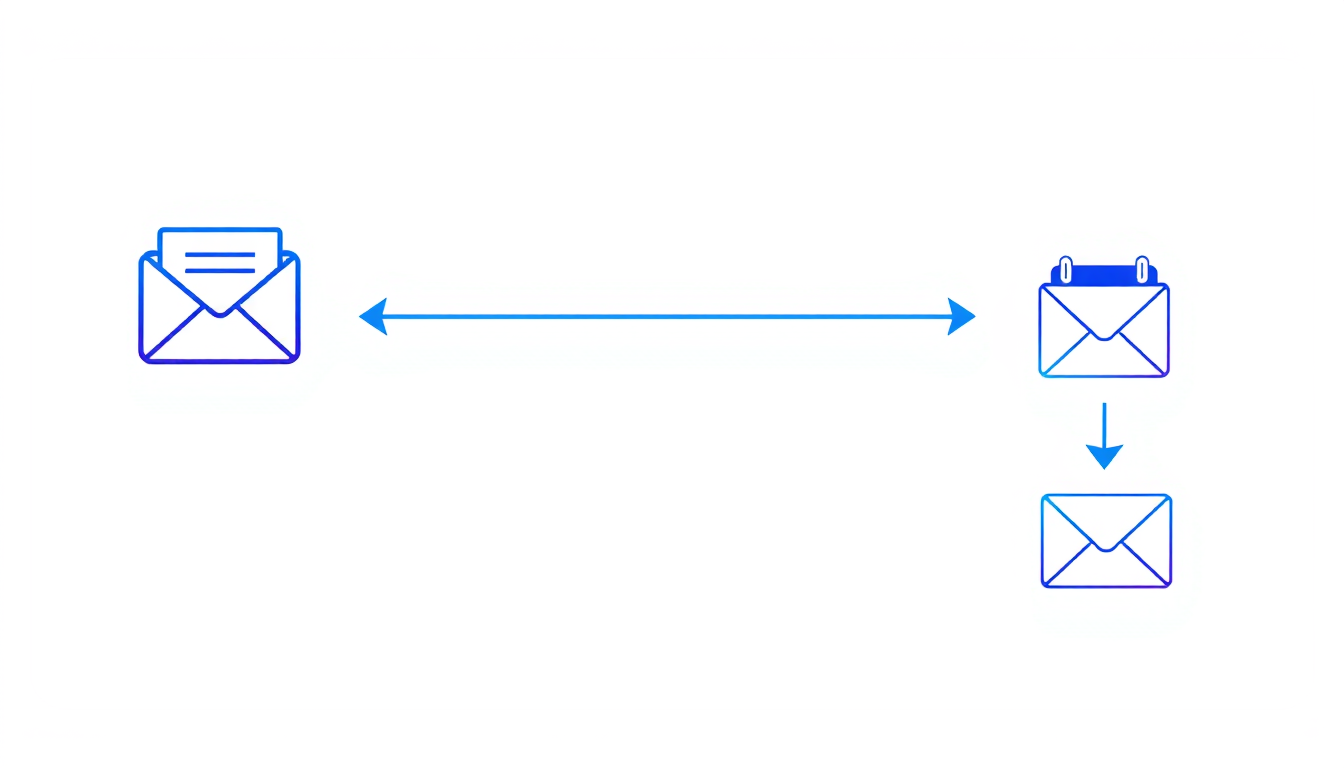
The core idea behind AI calendar automation is simple: instead of you reading an email, checking your calendar, proposing times, and going back and forth — an AI agent does all of that in seconds. I set mine up on a lazy Sunday afternoon, and by Monday morning it had already handled three scheduling requests while I was still drinking my first coffee.
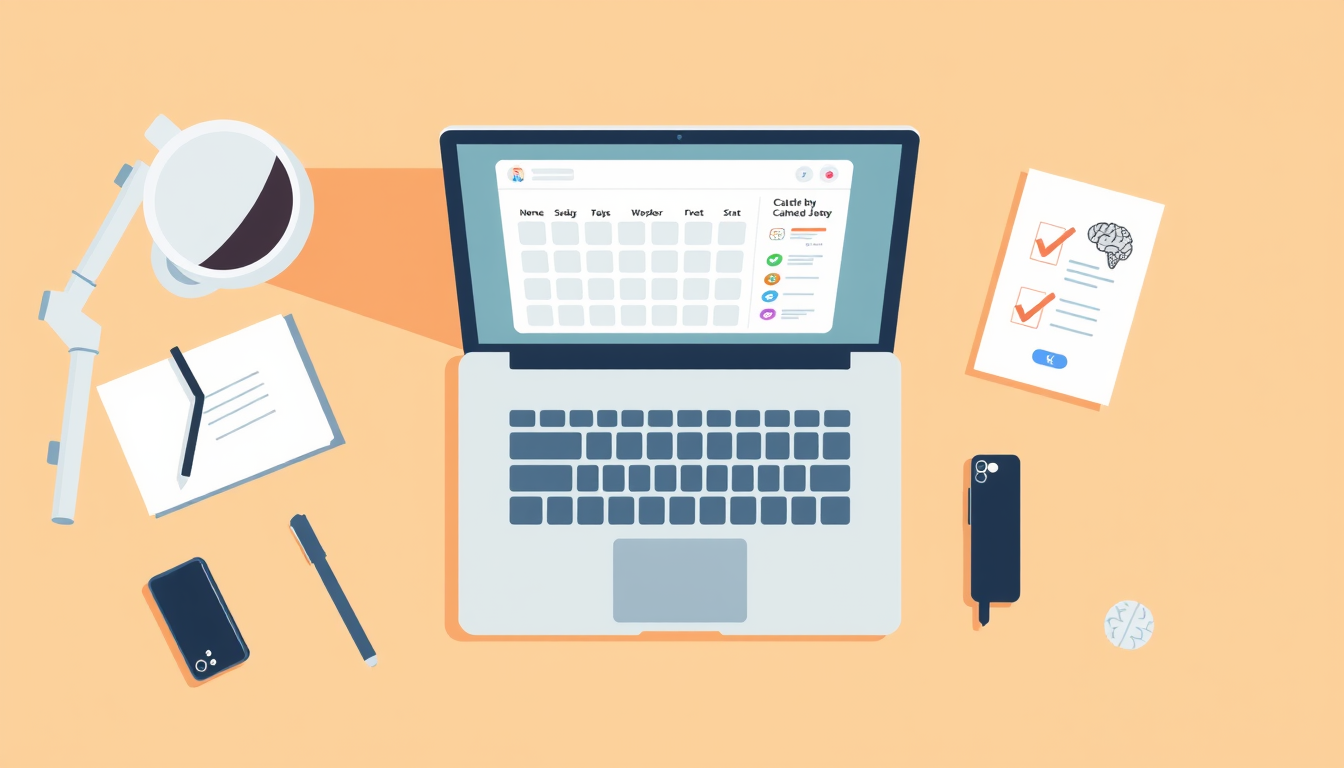
Step-by-Step: Setting Up Your AI Calendar Automation
Alright, let's build this thing. I'll walk you through the exact flow I use.
**Step 1: Connect your calendar to your scheduling tool.** Sign up for Calendly (or your preferred tool) and link your Google Calendar or Outlook. Set your availability preferences — working hours, buffer times between meetings, lunch blocks. This takes about 5 minutes.
**Step 2: Create your automation trigger.** Head to Zapier or Make and create a new workflow. Your trigger is: "When I receive an email that mentions scheduling a meeting." Most platforms can filter by keywords like "meet," "call," "schedule," or "chat."
**Step 3: Add AI to parse the request.** This is the fun part. Connect the Claude API as your next step. Send it the email body with a prompt like: *"Read this email. Does the sender want to schedule a meeting? If yes, extract their preferred dates/times and timezone. If no specific times are mentioned, generate a polite reply with my Calendly link."* Claude is remarkably good at understanding context here — it even picks up on vague phrases like "sometime next week."
**Step 4: Auto-draft or auto-send the response.** Connect Gmail or Outlook as your final step. I recommend starting with "draft" mode so you can review responses for the first week. Once you trust it (and you will), switch to auto-send.
**Step 5: Add a calendar conflict check.** Use your scheduling tool's API to verify availability before the AI proposes times. This prevents double-bookings and keeps your AI calendar automation airtight.
The Results: What This Actually Saves You
Let me share some real numbers from my own experience, because I'm a nerd who tracks everything.
**Before AI calendar automation:** - ~45 minutes/day on scheduling emails - Average 3.2 emails per meeting to confirm a time - At least 2 double-bookings per month (embarrassing)
**After:** - ~5 minutes/day reviewing drafts (first week), then basically zero - Average 1.1 emails per meeting — usually just the auto-reply - Zero double-bookings in three months
That's roughly **3.5 hours per week** I got back. Over a year, we're talking about 180+ hours. That's more than four full work weeks. Let that sink in.
The cost? Calendly's free tier handles most of it. Zapier runs about $20/month for this complexity. Claude API costs me roughly $3-5/month for the volume of scheduling emails I get. So for under $25/month, I'm buying back hours of my life.
There's also a softer benefit I didn't expect: I'm more responsive now. People email me about a meeting at 10 PM, and they get a polished reply with available times within minutes. Multiple colleagues have commented that I've become "weirdly efficient" at scheduling. I just smile and change the subject.
❓ FAQ
Q: What if the AI misreads an email and sends a scheduling link when it shouldn't?
A: Start in draft mode — that's why Step 4 exists. In my first week, the AI flagged two emails as scheduling requests that were actually just casual mentions of "let's catch up sometime." I tweaked the prompt to require more explicit intent, and it hasn't misfired since.
Q: Does AI calendar automation work with multiple calendars?
A: Absolutely. Most scheduling tools like Calendly and Cal.com can check multiple calendars for conflicts simultaneously. I have my work Google Calendar and a personal one both connected, so the AI never books me during my kid's soccer practice.
Q: Is this secure? I'm nervous about AI reading my emails.
A: Valid concern. The automation only processes emails that match your trigger keywords — it's not reading everything. The Claude API processes the text without storing it for training purposes. You can also self-host n8n instead of using Zapier if you want full control over the data pipeline.
Conclusion
Setting up AI calendar automation was one of those small projects that made me wonder why I waited so long. It took me 30 minutes, costs less than a fancy coffee per week, and gave me back hours I now spend on work that actually matters (or, honestly, sometimes on longer lunches). If you're still playing email ping-pong to book meetings, grab the Claude API, connect it to your favorite automation platform, and let the robots handle the busywork. Future you will be grateful.